Import
Supported Fitness Devices, GPS receivers and file formats
03/01/14 00:45
TrailRunner directly and indirectly supports several workout recording devices. As it’s very time consuming to directly support fitness devices, I decided to interface with dedicated helper applications that do a much better job than I could do on my own. Go to TrailRunner > Preferences > Synchronize > Helper Applications to set the desired interface as described below.
Apple Nike+ iPod Sport Kit, Nike+ SportBand, Nike+GPS for iPhone.
 Direct import of workout data when you attach your iPod as a volume, set the mount as volume option in iTunes. For the Nike+ SportBand and Nike+GPS iPhone app, in preferences set synchronization to nikeplus.com, then in the main window click on Apple+Nike toolbar icon. Follow the screen instructions in TrailRunner to import your workouts from your nikeplus.com account.
iPhone GPS Recording Apps
Most iPhone GPS recording apps are capable of sending a recorded session to your mac via email. If the file format is anything like GPX, KML or TCX then you can directly import the recording via drag and drop of the file onto the TrailRunner application Icon.
Some Applications like Trails, RaceBunny or iTrail use the TrailRunner native communication interface via wifi.
Read more about iPhone Apps supported by TrailRunner.
Edge 605/705/500/800/510/810
ForeRunner 620/910XT
Oregon/fenix/tactix
 Import directly from the Fitness device by attaching it via USB to your Mac. Set Garmin USB Mass storage as your helper application and follow the screen instructions in TrailRunner.
ForeRunner FR50, FR60, 310XT, 405 and 405CX
 Garmin ANT Agent for Mac OS X allows you to transfer fitness data from compatible Garmin ANT devices to and from your Mac. Once your device is synchronized with your Mac, TrailRunner can access the data and import the local TCX files. Set the Garmin ANT Agent as your helper application and follow the screen instructions in TrailRunner.
ForeRunner 201/301/305/405, FR60, Garmin Edge 205/305/605/705
 Import by using Garmin Training Center as the synchronization helper.
To send courses to your fitness device use the helper application LoadMyTracks or GPSBable (see below).
Ambit
 Import by using Suunto MovesLink2 as the synchronization helper.
RS200, RS200sd, CS200, CS200cad or F6 heart rate monitor
 Import by using TrackRecord as the synchronization helper using the Mac's built-in microphone, iSight or an external microphone.
Any other Polar HRM file containing distance information can also be imported into TrailRunner. This includes files with the .hrm extension or .xml extension that may come from polarpersonaltrainer.com
If you own a Polar S625x with Irda the only known way is to use a PC emulation with Polar Personal Trainer and then export a HRM file. Please let me know if you find any better solution. (Forum: MAC with polar watches)
CS500
Upload you data to polarpersonaltrainer.com, export as an Polar HRM XML file and import that into TrailRunner
Please let me know if you find any better solution.
Global Trainer GPS
Use the Timex Device Agent which works exclusively with TrainingPeaks. Export a PWX file and import the file into TrailRunner.
Supported GPS Devices
 LoadMyTracks can communicate with most classical GPS devices like all Garmin, Magellan or even TomTom devices.
MacTravelRecorder can export GPX files from GPS mouses like the iBlue.
 Another great software to connect your GPS device is GPSBabel. It's an openSource initiative and supports almost any device or file format on the planet like formats from devices like Garmin GPS, Magellan GPS, TomTom GPS, many map programs and other GPS receivers. Save your recordings as a GPX file and import them into TrailRunner.
Supported File formats
TrailRunner can directly read and import files in the following formats:
GPX (either containing routes or tracks)
TCX (Garmin XML Database)
FIT (Garmin Fitness Database)
KML (GoogleEarth)
PWX (TrainingPeaks)
HRM (Polar HRM files)
XML (polarpersonaltrainer.com XML export)
fitlog (SportTracks FitnessLogbook)
If you have any different file format, use GPSBabel to convert it to any of the supported file formats above
Apple Nike+ iPod Sport Kit, Nike+ SportBand, Nike+GPS for iPhone.
iPhone GPS Recording Apps
Most iPhone GPS recording apps are capable of sending a recorded session to your mac via email. If the file format is anything like GPX, KML or TCX then you can directly import the recording via drag and drop of the file onto the TrailRunner application Icon.
Some Applications like Trails, RaceBunny or iTrail use the TrailRunner native communication interface via wifi.
Read more about iPhone Apps supported by TrailRunner.
Garmin
Edge 605/705/500/800/510/810
ForeRunner 620/910XT
Oregon/fenix/tactix
ForeRunner FR50, FR60, 310XT, 405 and 405CX
ForeRunner 201/301/305/405, FR60, Garmin Edge 205/305/605/705
To send courses to your fitness device use the helper application LoadMyTracks or GPSBable (see below).
Suunto
Ambit
Polar
RS200, RS200sd, CS200, CS200cad or F6 heart rate monitor
Any other Polar HRM file containing distance information can also be imported into TrailRunner. This includes files with the .hrm extension or .xml extension that may come from polarpersonaltrainer.com
If you own a Polar S625x with Irda the only known way is to use a PC emulation with Polar Personal Trainer and then export a HRM file. Please let me know if you find any better solution. (Forum: MAC with polar watches)
CS500
Upload you data to polarpersonaltrainer.com, export as an Polar HRM XML file and import that into TrailRunner
Please let me know if you find any better solution.
Timex
Global Trainer GPS
Use the Timex Device Agent which works exclusively with TrainingPeaks. Export a PWX file and import the file into TrailRunner.
Other
Supported GPS Devices
MacTravelRecorder can export GPX files from GPS mouses like the iBlue.
Supported File formats
TrailRunner can directly read and import files in the following formats:
GPX (either containing routes or tracks)
TCX (Garmin XML Database)
FIT (Garmin Fitness Database)
KML (GoogleEarth)
PWX (TrainingPeaks)
HRM (Polar HRM files)
XML (polarpersonaltrainer.com XML export)
fitlog (SportTracks FitnessLogbook)
If you have any different file format, use GPSBabel to convert it to any of the supported file formats above
Garmin Training Center shows a different distance as TrailRunner does
15/04/13 18:52
Problem: Your ForeRunner device displays a distance for a workout. Garmin Training Center displays the same distance but TrailRunner displays a different distance.
Background: During the workout, your ForeRunner records geographical data points. At the same time your ForeRunner internally adds up the distances as a total distance so far. If you have intelligent recording enabled on your ForeRunner and the GPS signal quality isn't too good, the device will alter the recorded geographical course -- and therefore the derived distance -- after it knows better. Problem is that at the same time the overall distance should also be adjusted, which is not the case.
Status: To avoid confusion, TrailRunner usually displays the distance your device is displaying. But it could happen that the real distance, based on the mere data points, "slips through" in TrailRunner. This indeed is contradictory information but at the same time it is like impossible to me to "do it right".
Background: During the workout, your ForeRunner records geographical data points. At the same time your ForeRunner internally adds up the distances as a total distance so far. If you have intelligent recording enabled on your ForeRunner and the GPS signal quality isn't too good, the device will alter the recorded geographical course -- and therefore the derived distance -- after it knows better. Problem is that at the same time the overall distance should also be adjusted, which is not the case.
Status: To avoid confusion, TrailRunner usually displays the distance your device is displaying. But it could happen that the real distance, based on the mere data points, "slips through" in TrailRunner. This indeed is contradictory information but at the same time it is like impossible to me to "do it right".
NikePlus import problems
05/01/13 14:56
Problem: Unfortunately Nike+ has no official API to retrieve the workout data. So I did some reverse engineering that may fail from time to time.
Solution: If that happens, please contact me and help be nail down the change with the following debug data:
- start a nike+ sync that fails.
- quit TrailRunner.
- create a compress archive of the following folder and attach the zip archive to a no mail message to me.
yourhome/Library/Application Support/TrailRunner/Nikeplus_v3
- attach this file
yourhome/Library/Application Support/TrailRunner/com.berbie.trailrunner.log
Note: On recent versions of MacOS X the Library folder is hidden. Read this post on how to access it.
Solution: If that happens, please contact me and help be nail down the change with the following debug data:
- start a nike+ sync that fails.
- quit TrailRunner.
- create a compress archive of the following folder and attach the zip archive to a no mail message to me.
yourhome/Library/Application Support/TrailRunner/Nikeplus_v3
- attach this file
yourhome/Library/Application Support/TrailRunner/com.berbie.trailrunner.log
Note: On recent versions of MacOS X the Library folder is hidden. Read this post on how to access it.
Importing GPX files as Activities, Routes and Tracks.
05/01/13 14:37
Problem: When you import a GPX file, the following intentions may be on your mind:
a) The GPX file you import is actually a recorded workout of your own (possibly containing heart-rate data), so it's an activity.
b) The file contains a route created by someone else and you want to add it to your own list of routes.
c) You are interested in the tracks and way-points contained in the file and you want to merge them into your network of tracks -- to be used in future routes you create.
Solution: when you import a GPX file, TrailRunner asks you if the file is to be imported as an activity or a route. Chose either option.
When you want to import the waypoints only, go to the Document Toolbar > Locations and import the file there.
Tip: For a better conceptual understanding of TrailRunner and the difference between tracks, routes and activities, take a look at the TrailRunner QuickGuide Tutorial
a) The GPX file you import is actually a recorded workout of your own (possibly containing heart-rate data), so it's an activity.
b) The file contains a route created by someone else and you want to add it to your own list of routes.
c) You are interested in the tracks and way-points contained in the file and you want to merge them into your network of tracks -- to be used in future routes you create.
Solution: when you import a GPX file, TrailRunner asks you if the file is to be imported as an activity or a route. Chose either option.
When you want to import the waypoints only, go to the Document Toolbar > Locations and import the file there.
Tip: For a better conceptual understanding of TrailRunner and the difference between tracks, routes and activities, take a look at the TrailRunner QuickGuide Tutorial
Modify workout courses
04/01/13 22:43
Problem: You forgot to turn off your GPS device or the signal was very weak at the beginning of your workout. You would like to trim your recorded workout data at the beginning and/or end.
Background: You can only modify workout courses for activities while you are about to import them. Once they are within the diary, it's not possible anymore to alter them.
Solution: Use the track-point inspector panel to modify the activities track before you import the activity.
There are two techniques you can now use to correct the data to be imported before you actually import them. In both cases, first open the track-point inspector panel in the bottom toolbar:
1) Select the range you want to remove. In the track-point inspector panel select the 'trim selection' command. This will remove all data points from the selection up to the nearest edge.
2) Select one data point, e.g. the first datapoint of the presumable next workout. In the track-point inspector panel, select the 'split at selection' command. This will remove the selected data point and create two new entries for either side of the selection.
Reference: Please also see Tutorial > Import Activities
Background: You can only modify workout courses for activities while you are about to import them. Once they are within the diary, it's not possible anymore to alter them.
Solution: Use the track-point inspector panel to modify the activities track before you import the activity.
There are two techniques you can now use to correct the data to be imported before you actually import them. In both cases, first open the track-point inspector panel in the bottom toolbar:
1) Select the range you want to remove. In the track-point inspector panel select the 'trim selection' command. This will remove all data points from the selection up to the nearest edge.
2) Select one data point, e.g. the first datapoint of the presumable next workout. In the track-point inspector panel, select the 'split at selection' command. This will remove the selected data point and create two new entries for either side of the selection.
Reference: Please also see Tutorial > Import Activities
Make Route from Activity takes veeeery long
22/04/12 10:51
Problem: You have selected an activity and click on the make route button. TrailRunner becomes unresponsive and calculates for a very long time until the process is finished or seemingly never finishes.
Background: If you have already collected a network of track and merge new elements into it, the calculation of what is already there and what is similar and can be consolidated can be very time intensive.
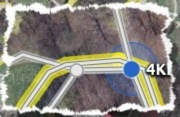 Suggestion: Please read the quick-guide tutorial and understand what way-point perimeters mean. If you can set up your network of tracks to contain landmarks with good perimeters, the operation above will be much faster.
Workaround: The only alternative is to merge the track by hand (yellow sign) and then later recreate a route based on the spitted and joined tracks. This will also give you the opportunity to initially set up your way-point perimeters.
> QuickGuide Tutorlal
Background: If you have already collected a network of track and merge new elements into it, the calculation of what is already there and what is similar and can be consolidated can be very time intensive.
Workaround: The only alternative is to merge the track by hand (yellow sign) and then later recreate a route based on the spitted and joined tracks. This will also give you the opportunity to initially set up your way-point perimeters.
> QuickGuide Tutorlal
How can I Import my Windows SportTracks database into TrailRunner
29/01/11 01:30
Problem: You switched to a Mac and want to import your SportTracks database into TrailRunner.
Solution: TrailRunner can import SportTracks Fitness Logbooks. Alternatively -- by using a third party plugin -- SportTracks can export its database as a Garmin TCX database. This also includes (almost any) additional data fields from SportTracks.
Reference: See Supported GPS fitness devices and file format types for more info.
Solution: TrailRunner can import SportTracks Fitness Logbooks. Alternatively -- by using a third party plugin -- SportTracks can export its database as a Garmin TCX database. This also includes (almost any) additional data fields from SportTracks.
Reference: See Supported GPS fitness devices and file format types for more info.
TrailRunner and Suunto compatibility
14/10/10 09:36
Problem: You have a Suunto fitness device and you want to display the recorded data in TrailRunner
Background: The Suunto applications Trek Manager and Track Exporter are only compatible with Windows.
Solution: Suunto offers a Webservice called Movescount that is compatible with Mac OS X.
> Use TrailRunner with Suunto Devices
Background: The Suunto applications Trek Manager and Track Exporter are only compatible with Windows.
Solution: Suunto offers a Webservice called Movescount that is compatible with Mac OS X.
> Use TrailRunner with Suunto Devices
Append workouts into one
04/07/10 13:25
Problem: You made several activity recordings and want to append each single activity to one concatenated representation.
Background: You can only append activities to each other while you are about to import them. Once they are within the diary, it's not possible anymore to alter them.
Solution: In the import pane, place a checkmark on each entry you want to concatenate. In the lower toolbar, use the Append toolbar button to replace both by a concatenated representation. Each activity will be represented as a lap within the resulting placeholder activity.
Background: You can only append activities to each other while you are about to import them. Once they are within the diary, it's not possible anymore to alter them.
Solution: In the import pane, place a checkmark on each entry you want to concatenate. In the lower toolbar, use the Append toolbar button to replace both by a concatenated representation. Each activity will be represented as a lap within the resulting placeholder activity.
Can I merge GPS data with workout data?
10/02/10 21:12
Problem: Is there an easy way to merge GPS data and HR data into TrailRunner?
Solution: When your heart-rate data contains distance information, the you can do the following:
- First import the track from your GPS device, iphone or file and make a route of it so that it appears in the routes list.
- Remove the activity as otherwise you cannot add a new activity for the same date. - Then import your workout from your ForeRunner 50 or HRM file and select the route in the import panel.
TrailRunner will now merge the Heat-rate data and the GPS Data based on the distance information.
Note: For not GPS enabled workout devices you require a food-pod while your where running as TrailRunner requires distance information for the matching.
Solution: When your heart-rate data contains distance information, the you can do the following:
- First import the track from your GPS device, iphone or file and make a route of it so that it appears in the routes list.
- Remove the activity as otherwise you cannot add a new activity for the same date. - Then import your workout from your ForeRunner 50 or HRM file and select the route in the import panel.
TrailRunner will now merge the Heat-rate data and the GPS Data based on the distance information.
Note: For not GPS enabled workout devices you require a food-pod while your where running as TrailRunner requires distance information for the matching.
Does TrailRunner support the Polar XXX monitor?
29/01/10 18:48
Problem: TrailRunner is not able to directly import Polar Workout data from the monitor.
Solutions: Using third party helper applications, TrailRunner may read data files created by these application. Known solutions are:
- With TrackRecord you can download workouts for some SonicLink Polar devices but Infrared is not supported.
- If you can manage to download HRM files with e.g. a windows emulator and Polar software you can import the file into TrailRunner. But it requires that you have worn a foot-pod during the workout as TrailRunner relies on the distance information to display a workout chart and merge the workout data with the course of a route.
- Any other application that can export GPX and TCX files from Polar devices can be used too, as TrailRunner can import these file formats.
> Supported Devices
Unsupported watches are: Polar RS300X
PS: Please let me know if you found a working solution.
Solutions: Using third party helper applications, TrailRunner may read data files created by these application. Known solutions are:
- With TrackRecord you can download workouts for some SonicLink Polar devices but Infrared is not supported.
- If you can manage to download HRM files with e.g. a windows emulator and Polar software you can import the file into TrailRunner. But it requires that you have worn a foot-pod during the workout as TrailRunner relies on the distance information to display a workout chart and merge the workout data with the course of a route.
- Any other application that can export GPX and TCX files from Polar devices can be used too, as TrailRunner can import these file formats.
> Supported Devices
Unsupported watches are: Polar RS300X
PS: Please let me know if you found a working solution.
What's the resolution of the workout data graph?
27/04/09 22:39
Problem: When I view my workout data in other applications like garmin training center, the data points for heart-rate and speed are much more noisy detailed than in TrailRunner. Additionally the TrailRunner graph seems not to start at the left edge of the chart but appears to be indented. Furthermore a TrailRunner graph line sometimes is being drawn as a straight line without any intermediate data points, although there should be some.
Background: Other applications display the raw data of a device. This makes the graph unreadable. The philosophy of TrailRunner instead is to display the overall trend and development of your workout session.
Approach: TrailRunner has an auto split feature where the workout is being sliced into fixed distance intervals. For each interval the statistical median value is being calculated and one data point reflecting this value is then being used as a representative. As the location of the representative can be somewhere in-between the first interval, the graph might appear to be indented. Furthermore if representatives in adjacent intervals fall onto a straight line, only the edges representatives are being drawn and the connection line depicts the trend development.
Details: The auto split feature uses the following distance intervals. By the time of this writing it’s 250 m for workouts shorter than 10 km, then 500m up to 20 km, 1000 m up to 50 km and 10000 m from there on. A route with 42 km would then have 5 intervals.
Example: Below the identical workout in Garmin Training Center (upper image) and TrailRunner (lower image)

It’s rather obvious that the speed Graph in Garmin Training Center is full of noise and false signals. TrailRunner filters this out and gives you the statistical trend (blue line) for each interval (white circle within each interval separated by a white vertical line)
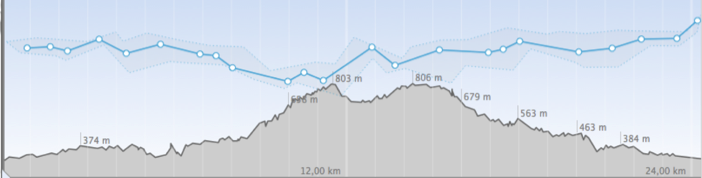
The thinner line around the blue line depicts the value range, so you still can make up that within the interval there was a great spread of values, but most of the time you stayed near the value depicted by the thick line.
BTW please note that the Garmin speed graph is upside down, so slower is a value near the top and faster is a value near the end. TrailRunner uses a the natural, mirrored display approach, where “better” is on top.
Background: Other applications display the raw data of a device. This makes the graph unreadable. The philosophy of TrailRunner instead is to display the overall trend and development of your workout session.
Approach: TrailRunner has an auto split feature where the workout is being sliced into fixed distance intervals. For each interval the statistical median value is being calculated and one data point reflecting this value is then being used as a representative. As the location of the representative can be somewhere in-between the first interval, the graph might appear to be indented. Furthermore if representatives in adjacent intervals fall onto a straight line, only the edges representatives are being drawn and the connection line depicts the trend development.
Details: The auto split feature uses the following distance intervals. By the time of this writing it’s 250 m for workouts shorter than 10 km, then 500m up to 20 km, 1000 m up to 50 km and 10000 m from there on. A route with 42 km would then have 5 intervals.
Example: Below the identical workout in Garmin Training Center (upper image) and TrailRunner (lower image)
It’s rather obvious that the speed Graph in Garmin Training Center is full of noise and false signals. TrailRunner filters this out and gives you the statistical trend (blue line) for each interval (white circle within each interval separated by a white vertical line)
The thinner line around the blue line depicts the value range, so you still can make up that within the interval there was a great spread of values, but most of the time you stayed near the value depicted by the thick line.
BTW please note that the Garmin speed graph is upside down, so slower is a value near the top and faster is a value near the end. TrailRunner uses a the natural, mirrored display approach, where “better” is on top.