diary
How can I filter the diary entries for activities with common attributes?
14/02/13 10:49 Filed in: Diary
Problem: The diary windows left pane has preconfigured filter modes for date, equipment and workout types. But you would like to see all entries of an arbitrary common property, month or year.
Solution: in the diary window search field, you can for entries that match common attributes. The following examples may give you a picture of what that is capable of.
Examples:
- Search for fragments in the comment field. For example 'evening run' would find all entries that contain this text fragment in their comment field.
- This enables you to use tagging. For example you could make yourself up a tag like 'x-withDog' 'x-fromWorkToHome', enter these tags into any activities comment and then search for those.
- You can also search for parts of the date. Enter '2011-' to find all entries of that year or '2011-03' to find all entries of that month. or -'03-' to find all entries of in March of every year. (for your interest, the full date format is yyy-mm-dd)
Solution: in the diary window search field, you can for entries that match common attributes. The following examples may give you a picture of what that is capable of.
Examples:
- Search for fragments in the comment field. For example 'evening run' would find all entries that contain this text fragment in their comment field.
- This enables you to use tagging. For example you could make yourself up a tag like 'x-withDog' 'x-fromWorkToHome', enter these tags into any activities comment and then search for those.
- You can also search for parts of the date. Enter '2011-' to find all entries of that year or '2011-03' to find all entries of that month. or -'03-' to find all entries of in March of every year. (for your interest, the full date format is yyy-mm-dd)
How can I display a statistic to analyze my performance over time?
06/01/13 11:36 Filed in: Diary
Problem: After using TrailRunner for a while you want to see how your performance has improved. You therefore would like to see a chart displaying your average milage, speed or fitness per over time.
Solution: In the diary, select the weeks tab. You see a chart that displays values over time.
- Right click the chart to hide/show rows like duration, distance, speed, etc.
- Select a range within the chart to analyze values within the selected period of time
- Select one or more entries within the bottom table of activities to see where they are located in the chart.
Tip: To build classes of workouts that you can compare to each other, categorize your workouts by:
- creating separate diaries for each type of activity (like biking and running).
- using tags for equipment or workout-type.
More: TrailRunner Help > Diary
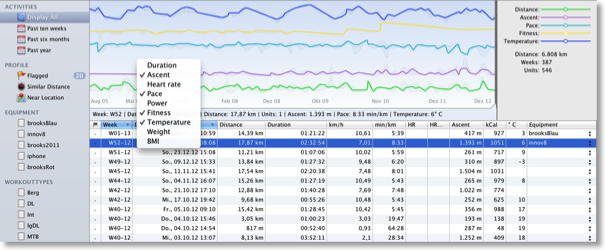
Solution: In the diary, select the weeks tab. You see a chart that displays values over time.
- Right click the chart to hide/show rows like duration, distance, speed, etc.
- Select a range within the chart to analyze values within the selected period of time
- Select one or more entries within the bottom table of activities to see where they are located in the chart.
Tip: To build classes of workouts that you can compare to each other, categorize your workouts by:
- creating separate diaries for each type of activity (like biking and running).
- using tags for equipment or workout-type.
More: TrailRunner Help > Diary
What is "My Best Performance"
22/04/12 10:53 Filed in: Conceptual
Problem: The diary displays My Best Performance. But that was not my fastest performance. What is it then?
Explanation: My Best Performance is based on the fitness value you achieved. The theory behind that is your most economic run — not necessarily your fastest.
On Fitness: In TrailRunner, the fitness is a calculated value based on the average pace and heart rate of a workout. The idea is that if you where very fast with a low heart rate you are fitter, while the opposite applies if you where very slow and had a high heart rate. This value is just for orientation and does not have the accuracy of the methods used in Polar watches or other biometric methods, but it gives a pretty good overall impression. To compare your fitness values to average adults, take a look into this table.
Explanation: My Best Performance is based on the fitness value you achieved. The theory behind that is your most economic run — not necessarily your fastest.
On Fitness: In TrailRunner, the fitness is a calculated value based on the average pace and heart rate of a workout. The idea is that if you where very fast with a low heart rate you are fitter, while the opposite applies if you where very slow and had a high heart rate. This value is just for orientation and does not have the accuracy of the methods used in Polar watches or other biometric methods, but it gives a pretty good overall impression. To compare your fitness values to average adults, take a look into this table.
Missing Activities
14/02/13 10:49 Filed in: Conceptual
Problem: In the main window, the activities list does not display entries that previously have been there. But I can find these in the diary.
Solution: Below the activities list there is a Filter Button. Please check if you have set a filter that hides the entries you where looking for.
Solution: Below the activities list there is a Filter Button. Please check if you have set a filter that hides the entries you where looking for.
Share diary and document between different Macs
13/04/14 16:07 Filed in: Diary
Problem: You have a Mac at home and one at work. You would like to synchronize your TrailRunner diary with these two computers.
Solution: TrailRunner supports Dropbox. You can put the TrailRunner documents into your Dropbox and the data gets synchronized between all linked computers.
As you might already know, TrailRunner stores all vital information within your home directories Application Support folder
To move your TrailRunner data to Dropbox, follow these steps:
- Download and install Dropbox.
- By default, Dropbox creates a new folder in your home directory called
- Open this folder and make sure that a folder named
- Now go to:
- Within, find the folder named
Next time you start up TrailRunner, the application will check on if your home directory contains the following folder:
If that's the case, TrailRunner will access this location instead of the default
If the default folder does not suit you, these alternatives are also looked into:
As this folder now is located within your dropbox, it is automatically being backed up and synchronized between all computers being linked to your dropbox.
Solution: TrailRunner supports Dropbox. You can put the TrailRunner documents into your Dropbox and the data gets synchronized between all linked computers.
As you might already know, TrailRunner stores all vital information within your home directories Application Support folder
To move your TrailRunner data to Dropbox, follow these steps:
- Download and install Dropbox.
- By default, Dropbox creates a new folder in your home directory called
Dropbox.- Open this folder and make sure that a folder named
Documents exists within. If this is not the case, create one with the exact spelling.- Now go to:
[yourhome]/Library/Application Support/- Within, find the folder named
TrailRunner and move this into the aforementioned Documents folder.Next time you start up TrailRunner, the application will check on if your home directory contains the following folder:
[yourhome]/Dropbox/Apps/TrailRunner/Application SupportIf that's the case, TrailRunner will access this location instead of the default
Library/Application Support location.If the default folder does not suit you, these alternatives are also looked into:
[yourhome]/Documents/Dropbox/Apps/TrailRunner/Application Support [yourhome]/Dropbox/Apps/TrailRunner/Application Support [yourhome]/Dropbox/Documents/TrailRunner[yourhome]/Shared/Library/Application Support/TrailRunnerAs this folder now is located within your dropbox, it is automatically being backed up and synchronized between all computers being linked to your dropbox.
How can I backup my files
04/01/13 22:34 Filed in: Diary
Problem: It's not really obvious to me where TrailRunner stores the main document containing routes and the database containing my diary activities. How can I backup these files?
Solution: TrailRunner stores files in the following folders. Backup these folders/files and your personal data is safe.
__yourhome__/Library/Application Support/TrailRunner
__yourhome__/Library/Preferences
__yourhome__/Library/Caches/com.berbie.trailrunner
> Read More about what files TrailRunner writes to your harddrive…
Hint: Another alternative to backing up your files is to place them in Dropbox. This also enables you to synchronize with other computers you own:
> Read More about how to synchronize your diary with other computers…
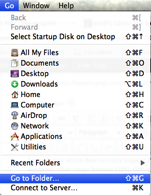 Hint: on Mac OS X Lion the __yourhome__/Library folder is invisible by default. But just hold down the option key while pulling down the Finder's "Go" menu to get there. Or you can make it permanently visible using the following terminal command:
chflags nohidden ~/Library/
or you can open it by typing the following into the Finder menu item Go > Go to Folder box:
~/Library
Solution: TrailRunner stores files in the following folders. Backup these folders/files and your personal data is safe.
__yourhome__/Library/Application Support/TrailRunner
__yourhome__/Library/Preferences
__yourhome__/Library/Caches/com.berbie.trailrunner
> Read More about what files TrailRunner writes to your harddrive…
Hint: Another alternative to backing up your files is to place them in Dropbox. This also enables you to synchronize with other computers you own:
> Read More about how to synchronize your diary with other computers…
chflags nohidden ~/Library/
or you can open it by typing the following into the Finder menu item Go > Go to Folder box:
~/Library
How can I export my diary
14/02/13 00:29 Filed in: Diary
Problem: While TrailRunner already has some statistical graphs built in, you sometimes still want to create your own graphs like e.g "calories burnt per kilometer".
Solution: Select the diary entries in TrailRunner and use Edit > Copy to paste the data into an external spreadsheet application like Numbers or Excel. To select all entries in TrailRunner, use Command-A.
Tip: If you import your data into Excel, make sure that the column separator is set to "tab separated".
Solution: Select the diary entries in TrailRunner and use Edit > Copy to paste the data into an external spreadsheet application like Numbers or Excel. To select all entries in TrailRunner, use Command-A.
Tip: If you import your data into Excel, make sure that the column separator is set to "tab separated".
How can I manually publish my weblog
09/02/10 15:02 Filed in: Diary
Problem: TrailRunner can publish your weblog to either a .Mac or FTP account. Both options might not work for you.
Solution: To manually copy your weblog to another server, follow these steps:
- Press the Preview Button in the Publish pane.
Safari will open and will show you the preview.
- Remove the /weblog.html part of the url displayed in the address bar.
- Press the return key while the cursor is still in the address bar.
Finder will open a new window with the exported files.
- Manually copy these to your server.
Solution: To manually copy your weblog to another server, follow these steps:
- Press the Preview Button in the Publish pane.
Safari will open and will show you the preview.
- Remove the /weblog.html part of the url displayed in the address bar.
- Press the return key while the cursor is still in the address bar.
Finder will open a new window with the exported files.
- Manually copy these to your server.